Noise suppression
Noise suppression removes background noise such as fans, computers, traffic, keyboards and mouse clicks from a voice. It uses a small neural network trained to separate speech from noise.
Turn it on with the Noise suppression effect in a channel's chain.
Where you can use it
Suppression can run on one microphone or on Chat Mix Out, one at a time. The mixer's processor can't run more than one instance.
To move it, switch it off on the current channel, press Save to mixer, then switch it on in the new place. If the channel that had it is no longer in the show, open suppression on the new channel and choose Release suppression slot. That switches suppression off on the old source in your unsaved edits and keeps its other settings. Press Save to mixer before enabling suppression on the new channel.
On Chat Mix Out
Chat Mix Out is the audio sent to the computer on the Chat USB connection, usually the people on a Discord, Zoom or Teams call. Suppression on Chat Mix Out cleans every microphone routed to Chat with a single denoiser, so two people in the same room both reach callers cleaned up.
Only the microphones are processed. Smart Pad sounds, music and other playback bypass suppression and the voice gate and keep their stereo image. They are delayed by the same amount to stay in sync with the voices. RØDE's fader levels, mutes and mix-minus routing apply as usual.
Other effects on Chat Mix Out, such as EQ and the compressor, process the finished stereo mix. Suppression is fixed at the start of this channel's chain.
Model and delay
RC2FX uses DeepFilterNet3. The model in RC2FX was retrained for this project with keyboard and mouse-click noise added to the training data, since those were the sounds the original model let through most. It uses more than half of one of the mixer's four cores.
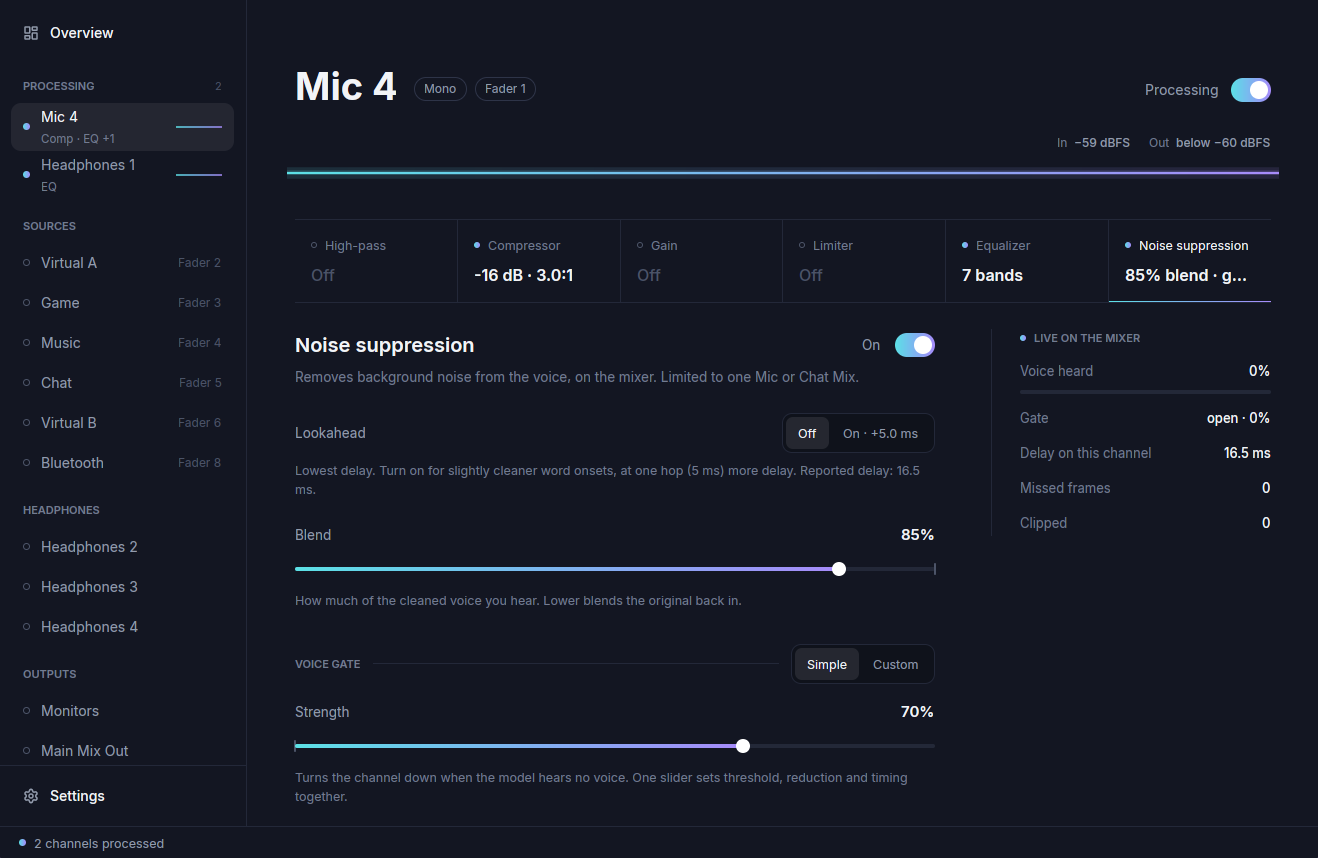
Suppression delays a microphone by about 16.5 ms. On Chat Mix Out the delay is about 2 ms shorter. The app shows the actual delay for each channel.
This delay is fine for streams, recordings and calls. You may notice it if you monitor your own processed microphone in headphones.
Lookahead
Suppression has a Lookahead switch. When it is off (the default), the model processes each frame using only audio it has already received. When it is on, the model waits for 5 ms of following audio before deciding, which can clean up the start of words a little better. Lookahead adds exactly 5 ms of delay. The app shows the resulting delay for each option on that channel.
Blend
Blend mixes the cleaned voice with the original signal. At 100% you hear only the cleaned voice. Lower it if the result sounds over-processed or "underwater".
Voice gate
The voice gate turns the microphone down between phrases, when the model detects no speech. This removes the faint noise that suppression leaves behind. It follows the model's speech detection, so loud non-speech sounds like clicks or a door slam don't open it. It adds no delay.
There are two modes:
- Simple has one Strength slider. 0% is off. Higher values close the gate more firmly and reduce the level further between phrases (about 20 dB at 50% and 30 dB at 100%).
- Custom exposes Threshold, Reduction, Attack, Hold and Release. It starts from the values the strength slider was giving.
If the start of words gets cut off, lower the strength. In Custom mode, lower the threshold or raise the hold.
When the mixer falls behind
Suppression runs alongside the mixer's own audio processing. If it misses its deadline, that block of audio plays unsuppressed. You may hear a short burst of background noise, but the audio doesn't click or drop out.